To prevent duplicate entries in a shared health record, decide who records each item, check “History” before adding an entry, and use “Updates” for follow-up notes. To fix duplicates in the PawsPet mobile app for owners, keep the more complete entry and delete the other from its details: deletion is permanent.
Why duplicate entries happen
- A vaccine seems to be missing. In the “Health” tab, it stays in the “Vaccines” panel for up to 7 days after its due date; after that, you can find it only in “History.”
- Two people record the same event. If several family members have “Edit” access to “Health,” they may enter the same visit without coordinating.
- A save is still waiting to sync. Offline changes stay in the queue: don’t repeat the entry right away. If someone changes the same item in the meantime, the server version takes precedence, with the notice “Edit rejected: a newer version exists on the server — data updated.”
Decide who records what
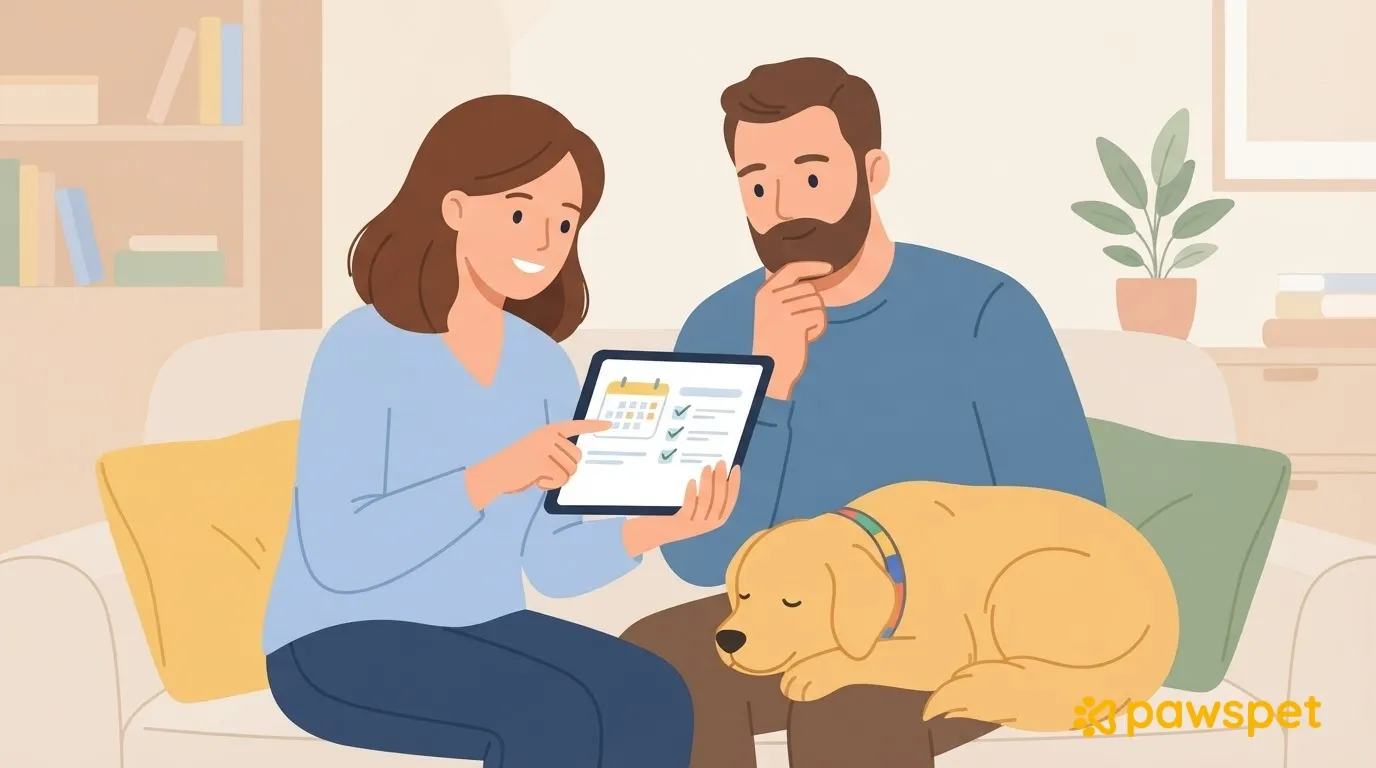
For example, agree that whoever takes the pet to the vet records the visit and vaccines by the end of the day; everyone else shares their observations with them.
Open the pet’s profile » ⋮ » “Collaborators,” then tap the toggle icon on the collaborator’s row. “View” access to “Health” is enough to read; leave “Edit” access to whoever records or updates information: it also allows them to delete entries.
With “View” access only, ⋮, “New,” and the trash icon do not appear in an entry’s details. A new collaborator starts with “View” access only for “Health”; access does not expire automatically and remains until you remove it.
AI report imports are for the owner: these features apply only to pets you own.
So align permissions for each area with the agreed tasks, avoiding “Full access” when it isn’t needed.
Before adding an entry: check History
“History” includes all entries, even expired or completed ones.
- Open “Pets” » select the pet » “Health,” then scroll down to “History” at the bottom.
- Tap “Filter.” Use free-text search, “Type,” minimum and maximum dates, and “Completed by” for entries that support it, such as visits. Search also includes linked diagnoses, prescriptions, and attachments.
- Check the count in “Show (N results)” and tap it; choose “Most recent” from the sort icon.
If you can’t find the expected entry, check the filters again: they remain set when you leave and return to the same pet’s profile.
Vaccine boosters: use one method for everyone
You can use “Add dose” in the vaccine form or create a new “Vaccine” entry with the same name, including from the “Remind {name}” suggestion under “Recommended,” when available. Choose one method with your family and stick to it over time.
Follow-up notes: use Updates
In the entry details, open “Updates” » “New” and enter a date and note. Each update shows who wrote it or the date. “Edit” access to “Health” is required.
AI reports without duplicates
As the owner, open “Health” » “+” » “Analyze report with AI.” You need an Internet connection, AI features enabled, and available credits.
In “Review,” every row is already checked: uncheck anything a family member has already recorded. Also check names and dates, which you can edit at this stage, then tap “Create N entries.”
The “Summary” also shows how many entries were skipped because they were already present, but it doesn’t guarantee that every duplicate will be found: always check for yourself.
Fix a duplicate
- Compare dates and contents: the same name alone isn’t enough to identify a duplicate. Keep the more complete entry, with attachments, updates, or reminders.
- Before continuing, keep any useful content from the other entry: you can open and download attachments from its details. Copy any notes you want to keep as updates in the entry you’re keeping.
- Open the duplicate from “History” or the panel, then tap ⋮ in the top-right » “Delete.”
- Read “Delete this entry?” Under “The following will be deleted with this entry:” only the items that are present appear:
- updates, photos, and attachments;
- linked diagnoses and prescriptions, for visits and tests;
- calendar entries and reminders, for vaccines, diets, treatments, and prescriptions;
- next-due-date notice, for tests that include one.
- Confirm with “Delete”; when online, wait for the “Health data deleted” message.
There is no restore option. Offline, you’ll see “Entry deleted on device: it will also be removed from the server when you’re back online.” If a family member has already deleted it from another device, the operation is still reported as successful.
Duplicates in the calendar and measurements
Vaccine due dates in “Activity” can’t be deleted from the calendar: use “Open” to go to the vaccine and correct or delete the entry in “Health.”
For measurements, the app keeps only one record per day: saving for the same date updates the existing record. You can’t delete it from the screen; as the owner, you can ask Copilot to delete it, but you must tap the button on the confirmation card.
If a change seems to have disappeared
In a conflict, the local change is discarded in favor of the latest server version. To check for operations still in the queue, tap the “N to sync” pill, or open “Profile” » “Data and cache” » “Pending changes.”
The pill may also appear when you’re online if a request failed and is waiting for another attempt.
Use “Retry” for failed or rejected operations; with “Discard,” you permanently give up that change after confirmation. Avoid editing the same entry at the same time as a family member.
The family rule in three lines
- Who records: whoever takes the pet to the vet enters visits and vaccines; the owner handles AI imports.
- Before adding: search “History.”
- For notes: use “Updates” » “New,” with “Edit” access to “Health.”
Check “History” today and delete duplicates only after keeping the useful information.