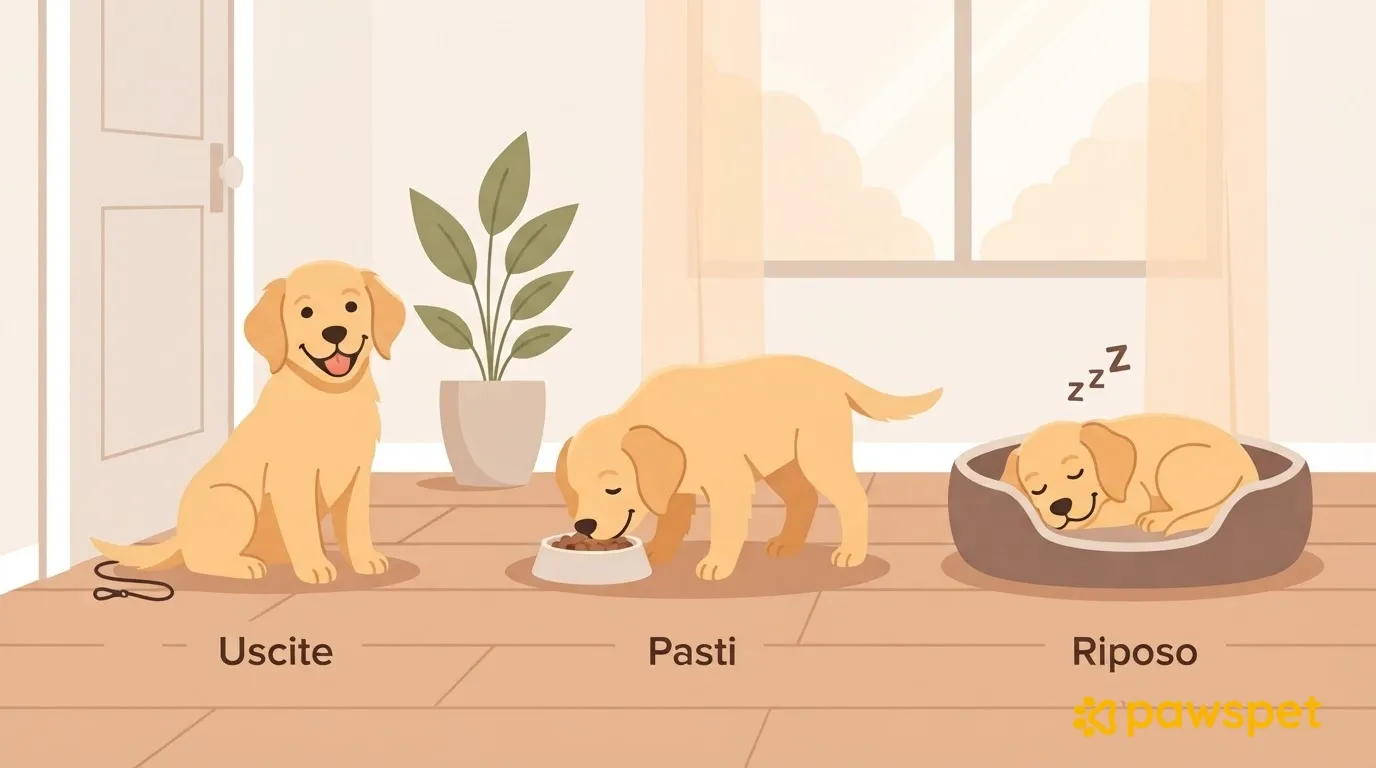
In the PawsPet app on your phone, create a recurring activity for each break, add a reminder, and mark each one as done or skipped every day. If a meeting runs long, move only the overlapping occurrence: the rest of the plan stays unchanged.
Which breaks to schedule during a workday
Start with the meetings already on your calendar and set aside time for breaks.
| Break | What it's for | Example |
|---|---|---|
| Walk before starting work | Go out before meetings begin | 8:15–8:35 |
| Sniffing or mini-training break midmorning | Do a short activity together | 10:30–10:40 |
| Longer lunchtime walk | Set aside more time to go out | 13:00–13:30 |
| Afternoon play or enrichment | Plan an activity indoors | 16:00–16:10 |
| Walk at the end of the workday | Get back into your routine after work | 18:00–18:20 |
Times and durations are examples: adapt them to your dog’s age, health, and habits, and consult your veterinarian for puppies, older dogs, or dogs with health conditions. In summer, schedule longer walks during cooler hours; around midday, favor short walks and indoor activities.
Create your first recurring break
- Open the «Activities» tab and tap the yellow «+» button, not the red one that starts GPS tracking. Alternatively, from Home, tap the «Record activity» quick action.
- Enter a title in the «Name» field, such as «Lunch walk».
- Leave «All day» turned off and set the date and start and end times. The default end time is 10 minutes after the start: adjust it to suit the break.
- Tap «Select activity type»: this is required. Under «General» you’ll find «Free play and walks» and «Indoor training»; under «Sports» » «General sports», «Walk» and «Interactive games».
- Under «Animals», select the dog already in your profile. This field is optional; linking the dog lets you filter breaks by dog later.
- Set «Repeat» and the reminder using the bell, as described in the next two sections.
- Tap «Save»: «Activity created» appears.
You can create activities offline too: the activity stays on your phone and syncs when your connection returns.
Workdays only or every day
From the «Repeat» row, open «Repeat event». For workdays only, choose «Every N weeks», set N = 1, select the circles from Monday to Friday, and enter the time. You can set just one time per activity here, so create a separate activity for each break.
If you want to group several breaks into a single activity, include every day of the week, including weekends, choose «N times a day», and use «Add time»: you can enter up to 6 times.
Under «Duration», choose «forever» or «Until a date», which is useful if you’re going back to the office in September. Check the summary sentence and tap «Done».
A reminder before each break
- In the form, tap the bell » «Set» and switch the toggle to «Enabled».
- Choose «10 minutes before» or «At the time of the event». Alternatively, under «Custom», set the amount and unit: for example, 45 and minutes for a 45-minute advance reminder. Then tap «Add reminder».
- Tap «Confirm», then «Save» in the form.
You need to allow notifications to receive reminders: if you denied permission, turn it back on in your phone settings. Under «Profile» » «Notifications», check that the «Push notifications» toggle is on for the «Activities» category, then tap «Save».
Check on the first day that reminders arrive as expected.
During the day: done, skipped, or moved
In the «Activities» tab, choose ☰ » «Day». Home also shows «Upcoming activities», with up to 5 of today’s activities.
- Done: tap the circle next to the occurrence. «Activity updated» appears.
- Skipped: tap «Ignore» and confirm.
- Moved: open the occurrence » «Edit», update the start and end times, and tap «Save». In the «Which events do you want to edit?» panel, choose «Only this one»: the other breaks in the series won’t change.
«Complete» and «Ignore» are available for recurring occurrences, not for one-time activities.
If your work schedule changes permanently, choose «This and future ones» after tapping «Save». If you close the panel without choosing, you’ll stay in the form: the changes won’t be saved.
At the end of the week: how many breaks you skipped
In «Activities» » ☰ » «List», open the «Status» chip, select «Ignored», and confirm. Ignored breaks are hidden by default: you can now count them by scrolling through the days of the week you want to review. If you have multiple dogs, use «Animal» too.
Before returning to your daily plan, reopen «Status» and deselect «Ignored»: the filter stays active even when you change views. Breaks marked as done count as completed.
Then open ☰ » «Statistics»: the «Activity minutes» bars and, if your distance goal is greater than zero, «Km traveled» show today’s progress.
The app calculates goals based on activity type, age, weight, height, and breed; you can’t set them manually. If weight and height are missing, you’ll see the «Add measurement» prompt on the animal’s profile. The 30 minutes used when there is no specific goal is an app default, not a recommendation.
If your lunchtime walk is often missed, consider getting help to cover it. You can look for a dog walker in PawsPet from the «Services» tab, type «Walk», and check the listed availability.
What the app doesn’t decide for you
The app helps you stay organized, but it doesn’t determine how much exercise your dog needs and doesn’t replace your veterinarian. Reminders depend on your notification permissions and preferences.
Create the break you skip most often today, then add the others.