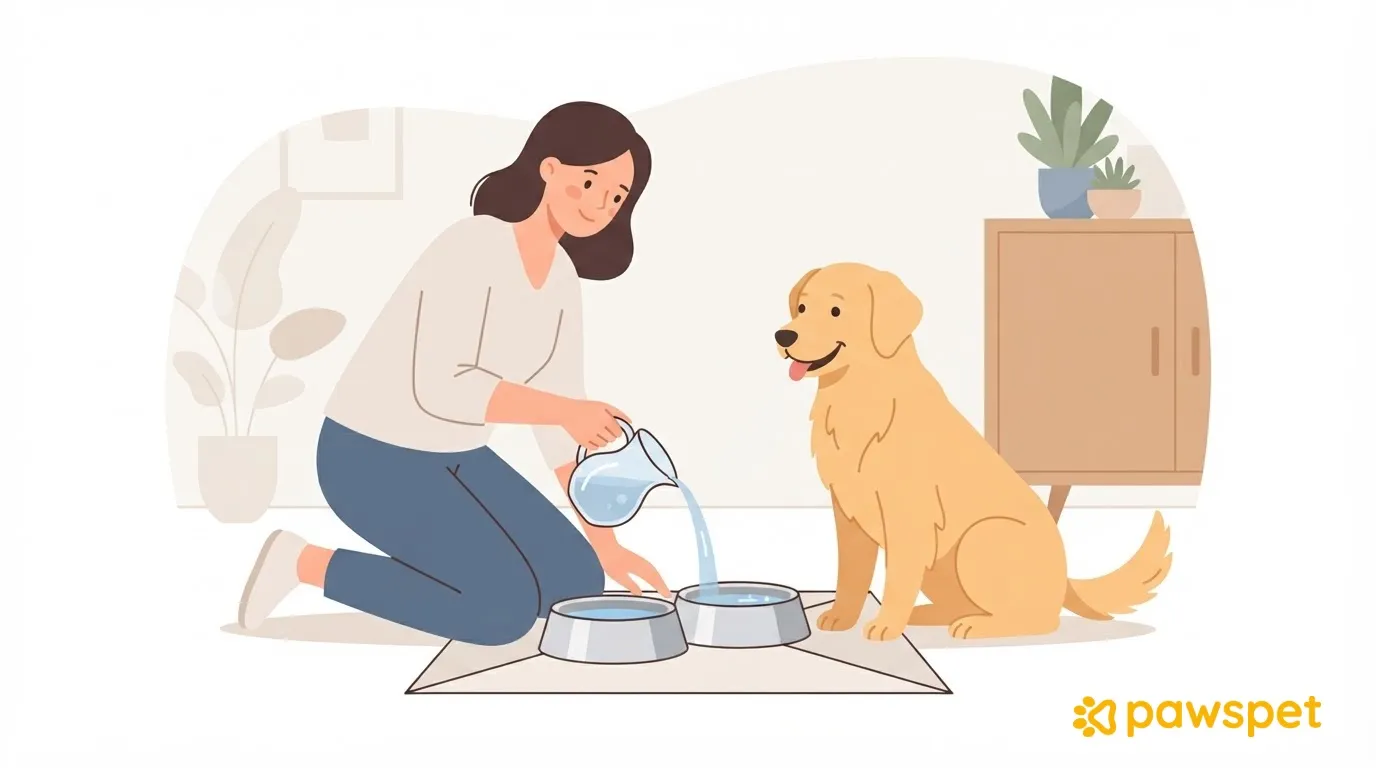
Changing the water and washing bowls or a fountain can be easy to forget when your household schedule changes. In PawsPet, you can set a recurring activity as a reminder: from the “Activities” tab, tap the yellow “+” button to create the activity, set a daily recurrence and one or more alerts, then mark each day's occurrence as complete using the circle. The activity reminds you about the task, but it does not measure how much your pet drinks.
What you get with a recurring activity
You create the activity just once: occurrences are generated automatically according to the rule you choose, so you don't have to add them one by one, and you can mark each one as complete or skip it. Alerts arrive at the times you set in relation to the activity time. Activities scheduled for today also appear on the Home screen in the “Upcoming activities” section (up to five).
For our example, we'll use “Fresh water and bowls,” with two occurrences a day: morning and evening.
Before you start
To receive alerts, the app needs permission to send notifications. If you denied permission, turn it back on in your phone's system settings: the app won't ask you again on its own.
Then open the “Profile” » “Notifications” tab and check that push notifications are enabled for the “Activities” category; if you change anything, tap “Save.”
Create the activity step by step
- Open the “Activities” tab and tap the yellow “+” button in the bottom-right corner. The red button is for GPS tracking.
- In the “Name” field, enter, for example, “Fresh water and bowls.”
- Leave “All day” turned off and set the start time: the end time is set to 10 minutes later by default.
- Tap “Select activity type,” a required field, then search for and choose, for example, “Food and supplies” in the “General” category. Without a type, the error “Activity type is a required field” appears.
- Under “Pets,” select the animals involved; this field is optional.
- Tap “Set” on the row with the bell icon to open the “Alert” page. Turn the toggle on to “Enabled,” check a preset alert such as “At the time of the event” or “10 minutes before” (or create one under “Custom” using “Add alert”), then tap “Confirm.”
- Tap the “Repeat” row to open the “Repeat event” page. Choose “N times a day” and add the times, for example morning and evening, using “Add time” (up to 6), or choose “Every N days” with N set to 1 (tap the number in the sentence to set it). Under “Duration,” choose “forever.” A sentence at the top summarizes the rule: check it and tap “Done.”
- In “Notes,” write what to do, for example, wash the bowls with a dedicated sponge or check the fountain filter.
- Tap “Save” and check that the “Activity created” message appears.
Don't skip step 7: without a recurrence, the activity remains a one-off and won't have a circle to mark it as complete.
Alternatively, you can ask PawsPet Copilot to create the recurring activity: open it using the purple wand button on the Home screen and describe the routine. The assistant prepares a confirmation card and saves only after you approve; then open the activity and check the times and alerts. AI features and an internet connection are required.
Every day: mark complete, skip, and find the routine
After changing the water and washing the bowls, tap the empty circle next to the occurrence in the list, or open the activity and tap “Complete.” The circle turns into a green disk and “Activity updated” appears. This also works offline: the change is applied when the connection is restored.
If you skip the task one day, tap “Ignore” and confirm. Ignored occurrences aren't shown with the default filters: to find them, select “Ignored” in the “Status” filter.
To narrow down the routine, use the “Category” (for example, “Food and supplies”), “Status,” and “Pet” filters. To change views, open the ☰ menu and choose “List,” “Month,” “Week,” or “Day.” Tapping an alert notification opens the activity details directly.
Share the routine with your family
If other people help with the bowls, you can add them as the pet's collaborators: open the pet's details, tap the ⋮ icon » “Collaborators” » “Add collaborator.” Search for the person by name or email: at least 4 characters are required, and they must already have a PawsPet account.
Then choose their permissions. In the “Activities” group, enable “View” and, if they need to log activities, also “Edit.” A new collaborator starts with only “View” permission for “Health”; other permissions must be granted explicitly. With “View” permission for “Activities,” the person can see the pet's “Activities” tab.
Don't assume the collaborator will receive alerts or be able to mark occurrences as complete: try it together and agree on who will handle the task. To share responsibilities at home, you can share the pet's profile with the people involved and decide, area by area, what each person can view or edit.
When your household schedule changes
Open the occurrence, tap “Edit,” change the time (recurrence times are under “Repeat”), and tap “Save”: the “Which events do you want to edit?” panel appears. Choose:
- “This and future”: for a new, ongoing time starting with this occurrence.
- “This only”: for a day that's different from the usual schedule.
- “Entire series”: to rewrite the rule.
To remove a single date, use “Delete” » “This only”: the occurrence is marked as ignored and the series remains. With “Delete” » “Entire series,” you permanently delete the activity instead.
Create the activity today with two times and check tomorrow morning that the alert arrives.
FAQ
Does PawsPet measure how much water my pet drinks?
No: the activity reminds you about the task, not how much your pet drinks. If you notice a change in thirst, talk to your veterinarian.
Can I use one activity for two pets?
Yes: you can select more than one under “Pets.”