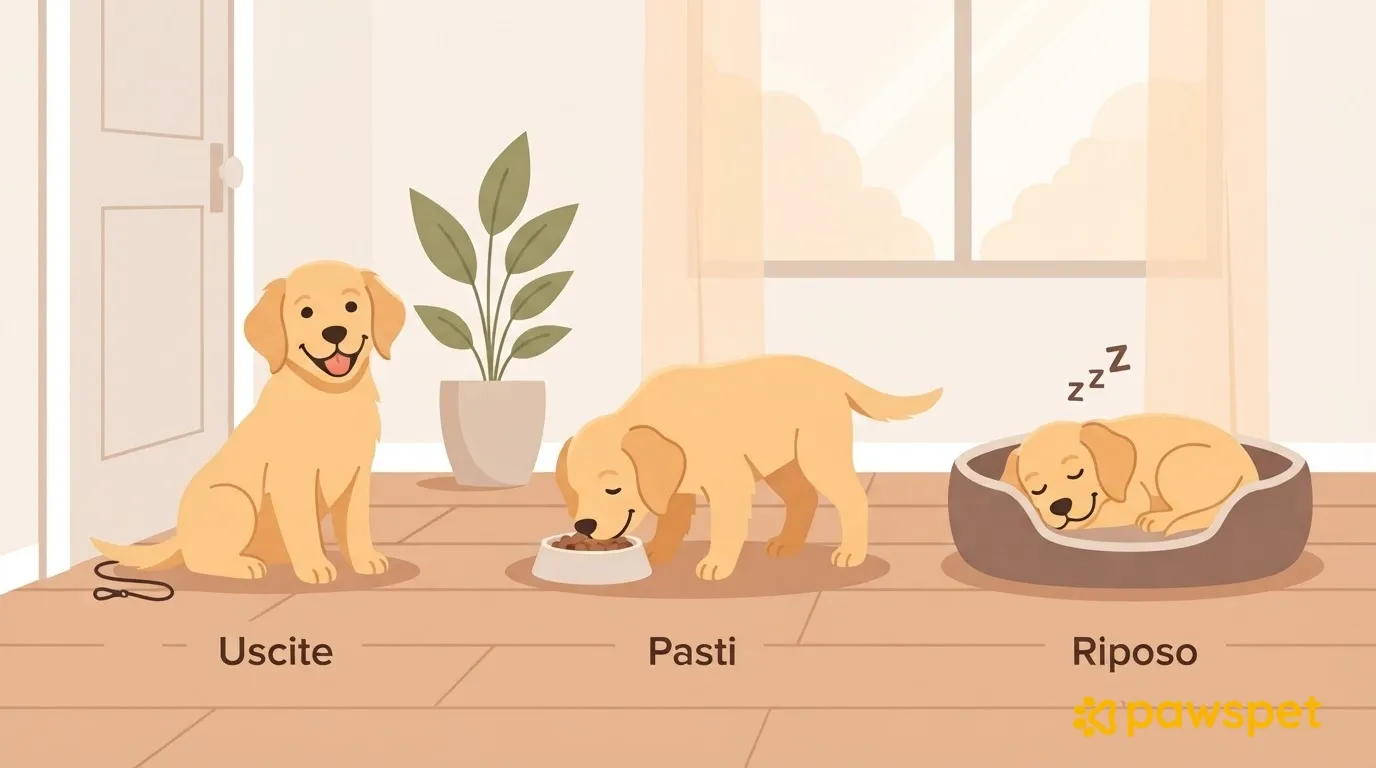
To avoid losing track of a missed walk or feeding a meal twice, in PawsPet you can create walks, rest, and puppy training as recurring activities, with multiple times per day and an alert. Meals are recorded as a diet in the “Health” tab and generate reminders you can check off. You decide the schedule together with your veterinarian or trainer.
Before you start
- Add your puppy from the “Animals” tab » “+” if you haven’t already: name, date of birth, species, and sex are required.
- Allow the app to send notifications; if you denied permission, turn it back on in your phone settings.
- In the “Profile” tab » “Notifications,” check that the “Activities” category has “Push notifications” enabled (it is by default); if you change anything, tap “Save.”
Walks, rest, and training as recurring activities
Start with a potty break:
- Open the “Activities” tab (the third icon in the bottom bar) and tap the yellow “+” button.
- In the “Name” field, enter, for example, “Potty break.”
- Leave “All day” turned off and set the start and end times: the end time is set to 10 minutes after the start by default.
- Tap “Select activity type.” Search for “Free play” using the search bar, or expand “General” using the arrow (tapping the name selects the entire category) and choose “Free play and walks.”
- Tap the “Animals” row and select your puppy.
- Tap the “Repeat” row, choose “N times a day,” and use “Add time” for each walk, up to 6 times.
- On the “Duration” tab, choose “Until a date,” specifying when you’d like to review the routine; then tap “Done.”
- Tap the bell row » “Set,” switch the toggle to “Enabled,” choose an alert such as “At event time” or “10 minutes before,” and tap “Confirm.”
- Tap the green “Save” button.
“Activity created” appears, and each occurrence (that is, each scheduled walk) appears in the calendar; the alert arrives as a notification.
Repeat the process in a new activity for each block: choose “Rest” for naps and “House training” for short training sessions. Both are subtypes of “General.”
| Block | Activity type | Repeat | Alert |
|---|---|---|---|
| Potty breaks | “Free play and walks” | “N times a day,” e.g., 07:30, 12:00, 18:30 | “10 minutes before” |
| Naps | “Rest” | “N times a day,” e.g., 10:00, 15:00 | “At event time” |
| Training | “House training” | “N times a day,” e.g., 11:00, 17:00 | “10 minutes before” |
These times are only examples to adapt, not health advice: agree on the number and duration of walks, rest periods, and sessions with your veterinarian or trainer. The red button above the “+” starts GPS tracking; you don’t need it for this routine.
Meals: the diet in the Health tab and reminders to check off
- Open the “Animals” tab » your puppy » “Health” tab » “Diet, therapies, and treatments” section » “Add.”
- Choose “Diet” in the selector at the top.
- Fill in “Name” and “Quantity.” Quantity is required: enter it as recommended by your veterinarian or indicated on the food label.
- Turn on “Recurring” and, in the “How often should it be given?” editor, set the frequency and meal times.
- Set the “Start date” and, if you’d like to review the diet, the “End date.”
- Turn on “Generate reminders in activities.” If you also want a phone notification, add “Set alert.”
- Tap “Save.”
Each scheduled meal appears in the “Activities” tab as a reminder with the diet name, a circle to check off, and “Ignore.” Whoever gives the meal checks it off, and the item changes from “To do” to “Done.”
Checking off, ignoring, and finding your day
- To mark an occurrence as done, tap the circle to the left of the row, or tap “Complete” in the details: it turns green and “Activity updated” appears.
- If a walk is missed, “Ignore” removes it from your to-do list. The app asks you to confirm and, with the default filters, ignored activities are hidden: to see them again, choose “Ignored” in the “Status” filter.
- Check-off and “Ignore” are available only for recurring activity occurrences and diet and therapy reminders: single activities don’t have them.
- To see the day hour by hour, open the “Activities” tab » ☰ » “Day”; if you have multiple pets at home, filter by “Animal.” The “Today’s to-do” block on the “Home” tab shows activities for today that are still incomplete.
- Check-offs made while offline are queued and sent as soon as the connection returns.
Sharing the routine with another adult
- On your puppy’s profile, tap ⋮ in the top right » “Collaborators” » “Add collaborator.”
- Search for the person by name or email: they must already have a PawsPet account, and the search starts after 4 characters.
- Enable “View” and “Edit” for “Activities” and, if they need to see or update the diet, also for “Health” (only “View” for “Health” is preselected initially).
- Confirm by tapping “Add collaborator.”
The other person will find your puppy under “Animals” » “Shared with me,” and the puppy’s profile will show the “Activities” tab (it appears with “View” permission). PawsPet’s documentation doesn’t specify whether alerts also reach them or whether you can see who checked off an occurrence, so agree on who covers which times of day. If a check-off doesn’t work, the app shows a message explaining why.
When the routine changes
- For walks, rest, and training: open an occurrence » “Edit,” change the times, and tap “Save.” Only then does “Which events do you want to edit?” appear: choose “This and future” to make a change from that day onward, “Only this one” for an exception, or “Entire series” for everything.
- To remove a single occurrence, use “Delete” » “Only this one”: it marks it as ignored. “Entire series” permanently deletes the series instead.
- Change meals from the diet: “Animals” tab » your puppy » “Health,” open the diet item, and use ⋮ » “Edit”; then check the reminders again in the “Activities” tab.
Update the routine whenever you agree on a change with your veterinarian or trainer. To get started, create the potty break today and add the other activities one at a time.
FAQ
Can I set up the same routine from a computer?
You can use the web version at app.pawspet.it on a computer, but its “Calendar” has different repeat options, such as every N days or every week, so the steps differ. This guide describes the phone app.
What happens to meal reminders that aren’t checked off?
When you open the calendar, a past diet reminder that hasn’t been checked off is considered ignored, so it doesn’t stay on your to-do list.