Whether you’re booking a pet sitter, dog walker, groomer, or veterinarian, put lasting instructions in the notes field in the payment summary; send details, photos, PDFs, and your location in the order chat. Share health information using a public read-only link or the consent option in the shop invitation, while passports and health booklets should be sent as chat attachments. Before booking, however, there is no chat with the business, and its public storefront does not show a phone number or email address. For questions, check the service description, the price list and its options, and the storefront’s opening hours, payment methods, and reviews.
At payment: the note for the professional
In the app’s cart checkout, there is one optional field, “Notes for businesses.” With “Book now,” the order summary includes optional notes (the official PawsPet guide does not specify the label). On pawspet.it, the booking “Summary” offers “Add a note for” followed by the professional’s name, up to 500 characters.
After submitting it, you can find the note in the order details as “Additional customer note,” in read-only form: you can’t edit it there, so send corrections and additions in the chat. Open the order from the “Profile” tab » “Orders placed” or from the “Active orders” panel on Home, when there is an order in progress.
Use the note for a few stable, practical details: how to reach the entrance, your pet’s habits, and things to avoid. If your pet is following a treatment, mention it in the note and attach the veterinarian’s written instructions in the chat, without copying the dosages. If the cart includes multiple shops, the guide does not specify how the single note is distributed: check the details of each order and send each professional their specific instructions in the chat. In any case, repeat in the chat anything that must not be missed.
After the order: chat for details, photos, and documents
Open the chat from the “Chat” tab in the order details, which appears when the order has a linked conversation (usually created with the order), or from the speech bubble icon on Home with the “Orders” filter. If you booked on the website, you can also find the order and chat with the same account in the web version, under “Messages” with the “Orders” filter.
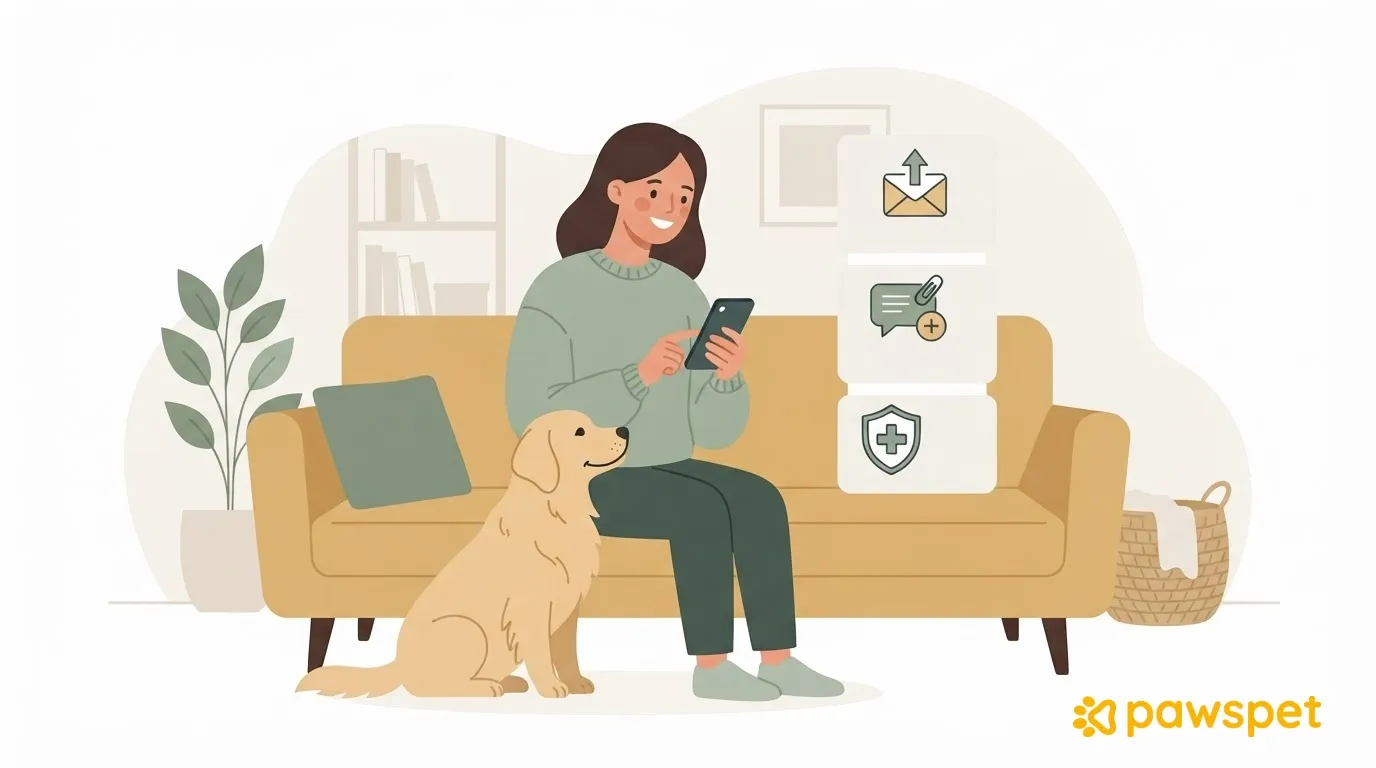
From the paperclip, you can attach a “Document” (images, PDF, Word, Excel, text, ZIP, or RAR), take a photo with “Camera,” choose one from “Gallery,” or send your “Location”: this is a fixed point selected on the map, not live tracking.
Each message shows its status: the clock means sending or queued, a single check means sent, and two blue checks mean read. If “Not delivered” appears, tap the bubble and choose “Send again.” Without a network connection, text stays queued and is sent when the connection returns; attachments, however, require a connection. If an upload fails, remove the file with the ✕ and attach it again. To clarify a detail, use “Reply” and quote the message you’re referring to.
Your order notes: when they appear and their limits
In addition to the payment note, the order details may include the “Your notes” section. It appears only if the shop already has you listed as a customer in its management system, and “Add note” is available until the order is “In progress”: the app warns that the note is visible to the shop.
One limitation to know: if you leave the order and open it again, you won’t see notes you wrote earlier, even though they remain saved and visible to the shop. This is not a chat. For instructions you need to reread or that require a reply, use the order chat.
Health information and documents: share only what’s needed
Don’t assume the professional can see allergies or treatments: communicate them explicitly, choosing the option that shares only what’s necessary.
Public read-only link. From your pet’s profile, open ⋮ » “Sharing,” turn on sharing, then use “Copy” or “Share” and paste the link in the chat; you need permission to edit the pet’s profile. Anyone with the link can view the page, even without an account: photos, name, breed, some basic information (including weight, microchip, and location, if entered), and a summary of diets and treatments, allergies with severity, vaccines and their status, illnesses, and injuries. It does not show documents or collaborators and does not allow changes. If you turn sharing off, the link stops working, but turning it back on makes the same link valid again: to truly revoke it, leave sharing off.
Shop invitation. If the shop sent you a link to connect to its customer profile, the “Allow… to view…’s health profile” checkbox, which includes the shop’s and pet’s names, is off by default: check it separately for each pet, only if you want to.
Collaborator. If the person has a PawsPet account and will care for your pet over time, add them from ⋮ » “Collaborators” » “Add collaborator”: they can always see the basic profile, start with view-only access to health information already selected, and keep access until you remove them.
In the app, passports and health booklets appear neither in the public link nor among collaborator permissions: send a photo or PDF as a chat attachment.
If you entrust your pet to the same people more than once, you can share the pet’s profile with separate permissions for basic information, health, and activities, choosing what each person can do in each area.
Quick check before the service
- The payment note is visible in the order details as “Additional customer note.”
- Specific instructions have been sent in the chat, and important messages show two blue checks.
- The necessary documents (passport, health booklet, written instructions from the veterinarian) are attached in the chat.
- The sharing link is active only if needed and should be turned off after the service.
- Temporary collaborators should be removed when they’re no longer needed.
Before your next service, open the order and complete anything that’s missing.