With the PawsPet app (iOS and Android), you can’t message the groomer before booking: there’s no chat, and no direct contact details are shown. So put essential instructions for the groomer in the booking note. After booking, you can use the order chat to add details and photos.
Before booking: what you can view and what you can’t ask
In the “Services” tab, choose the “Grooming” chip in the quick-filter row. If needed, open the filters (funnel icon), set “Service mode” to “At the business location” or “At home,” and tap “Apply.”
The service details include the “Info,” “Price list,” “Availability,” and “Reviews” tabs. Tapping the provider’s name opens their storefront, with sections such as “Location,” “Payment methods,” “Services,” “Working hours,” and “Reviews.”
The limitation is clear: until you place an order, you can’t message the provider, and the storefront doesn’t show a phone number or email address. So it’s best to prepare your instructions in advance.
When booking: put the essentials in the note
You can access the notes field in two ways:
- From the service details, tap “Book now.” Choose an option if there’s more than one, then select a date, time, and, if required, the dog, then tap “Continue”: the optional notes field is in the next summary.
- From the “Price list,” tap “+” on the option you want and confirm with “Add to cart.” Then, from the cart, tap “Proceed to order” or “Pay all”: here you’ll find the “Notes for providers” field.
On pawspet.it, when you choose “Book online,” the “Summary” has “Add a note for…” followed by the professional’s name, with a limit of 500 characters.
Write everything the groomer needs in the note; don’t assume they’ll check other sections of your dog’s profile. For example:
After you submit it, the note appears in the order details as “Additional customer note” and can’t be edited from that screen: reread it before confirming and use the chat for any later clarifications. If you still need to choose a salon, you can start with grooming services on PawsPet and compare prices and availability.
After booking: the order chat, including for photos
The booking becomes an order. Open it from the “Profile” tab → “Orders” (or from the “Active orders” panel on the Home screen), then tap the “Chat” tab next to “Details”: it’s available only when the order has a linked conversation. Alternatively, tap the speech-bubble icon in the upper-right corner of the Home screen and select the “Orders” filter.
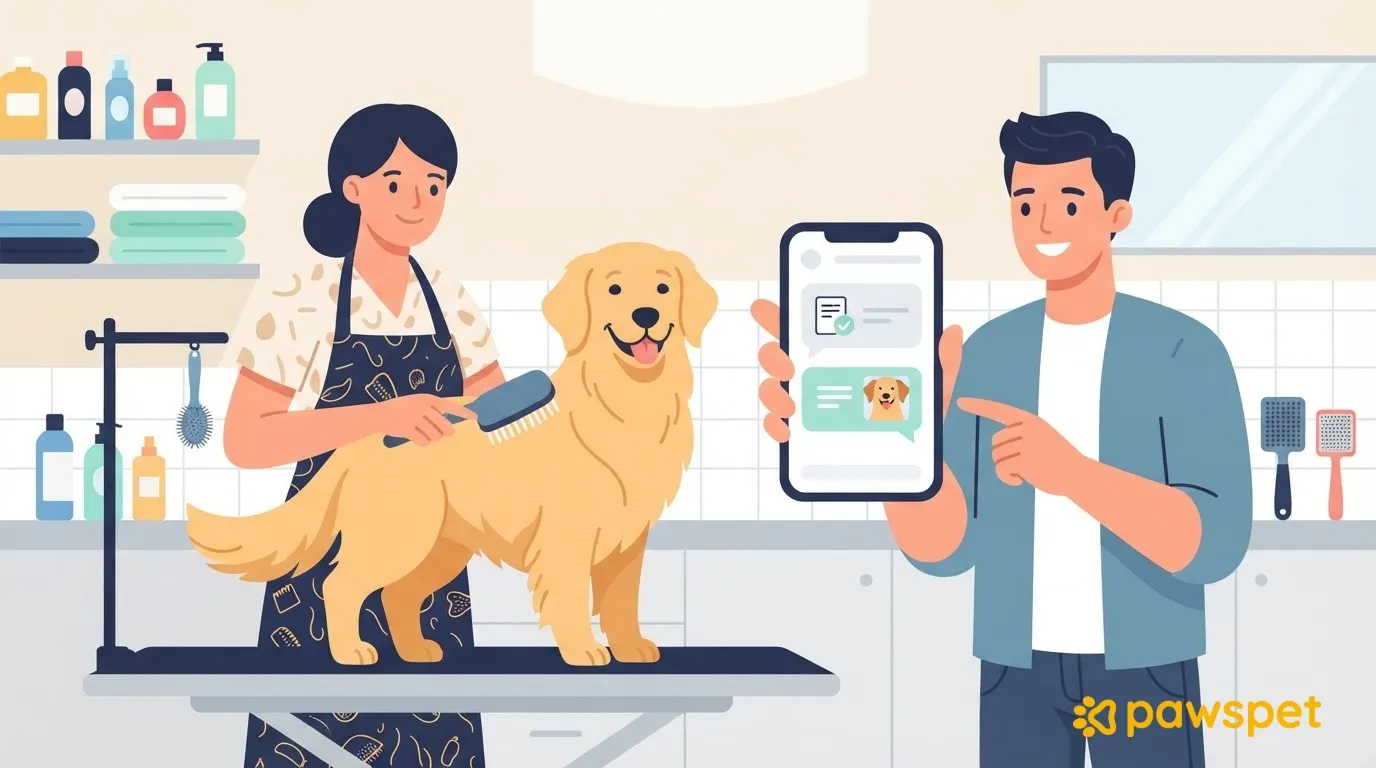
Here you can add details that came up after booking and send, for example, a photo of a cut you liked. To attach it, tap the “Attach” paperclip and choose “Gallery,” “Camera,” or “Document.” Attachments require a connection; text-only messages stay queued when you’re offline and are sent when you reconnect.
The appointment also appears in the “Activity” tab as “Order: …” with the service name. Tap it and choose “Open” to go to the order details; you can also open them by tapping an order notification.
Your notes in the order details: when they appear and their limits
The “Your notes” section may appear in the order details, but only if the groomer already has a customer record linked to your account. If not, the booking note and chat are still available.
You can use “Add note” until the order is “In progress,” and the note is visible to the business. However, once you leave the order details, you can’t see it again on that screen, even though it remains saved on the business’s side. For anything you want to be able to reread, the chat is a better option.
If the salon sends you an invitation to link your dog
The groomer can send you an invitation link. Open it in the app to see that they’ve created a customer record for you. For each animal they’ve already registered, choose “Link” (if you have a matching animal in your account), “Create new,” or “Skip.”
For each animal you don’t skip, there’s a checkbox labeled “Allow … to view …’s health record,” which is off by default. It applies to that animal only, and accepting the invitation by itself does not grant access to health data. Check it only if you really want to share that record.
Then choose “Accept” or “Not now.” With “Not now,” you can accept later using the same link, as long as it’s still valid. The business keeps its own record and the history it has recorded: you can add notes, but you can’t edit it.
After the appointment: confirmation, review, and the professional’s notes
- “Confirm delivery”: in the order details, when you pick up your dog. The button may appear while the order is still “In progress,” so tap “Yes” only after the service is complete. The order changes to “Completed”; if you paid in the app, this step releases the payment to the provider.
- “Leave a review”: available for 7 days after completion, with stars, a “Title” of at least 5 characters, and an optional “Comment” (if you write one, it must be at least 30 characters): this is where you can say how your dog got on. If you don’t write anything before the deadline, the system automatically posts a positive review.
- “Recorded by professionals”: “Animals” tab → your dog → “Profile” tab, under “Health.” This appears only if the feature is enabled server-side and the salon, which has a customer record linked to your account, has recorded something about that dog. Use “Add note” to leave instructions for next time, visible to the salon; professional data can’t be edited.
Prepare a 3–4-line note now to paste into your next booking: fears, sensitive areas, and the cut you want.
FAQ
The groomer suggested a different price or service. What should I do?
Open the order: if its status is “Awaiting customer,” the “The business proposes a change” panel shows the changed items and the new total. Tap “Accept” to apply the change to the order; if the price goes up, you’ll be asked to pay only the difference. Tap “Reject” to decline; you’ll need to provide a reason of at least 30 characters, and the order status changes to “Rejected by customer.” You can clarify in the chat before deciding.
Can the Copilot assistant book grooming for me?
No. Copilot can search for services and show their details and availability, but it can’t create or modify orders: you must complete the booking in the app, starting from the service page.