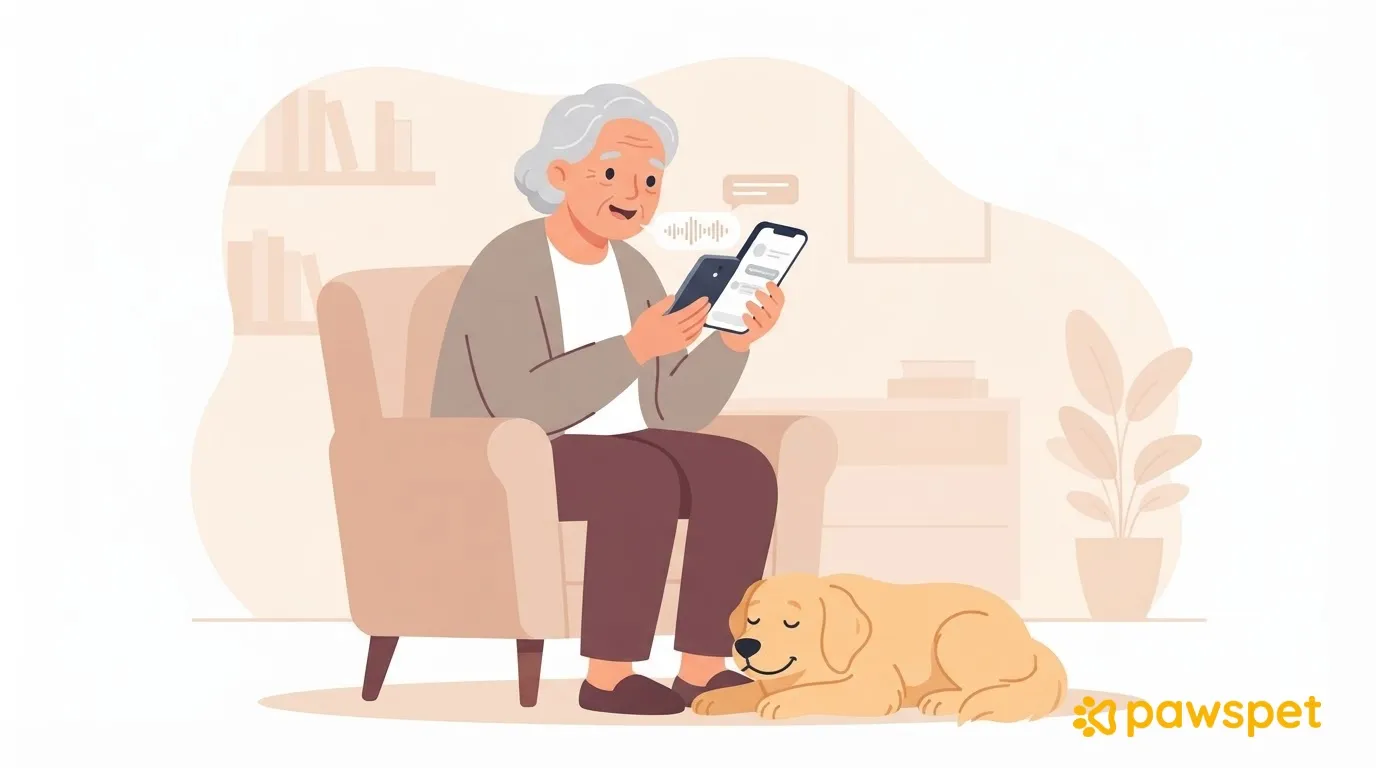
If typing on your phone tires you out, you can use your voice with PawsPet Copilot in two ways: dictation turns speech into text that you can review before sending. Copilot Live is a real-time voice conversation. In both cases, changes to your pet’s data are saved only after you confirm them.
Dictation or a live conversation
| Aspect | Dictation | Copilot Live |
|---|---|---|
| How to start | Microphone icon next to the text field. | “Talk to Copilot” panel on the home screen of a new chat, or the sound-wave icon in the composer. |
| What happens | The transcribed text appears in the field: review it and tap send. | Speak, listen to the reply, and read subtitles of the most recent exchanges. |
| When it’s useful | A short question or a note to check. | Several questions in a row without touching the screen, except to confirm actions. |
| Good to know | Recording lasts up to 90 seconds; it also stops after a few seconds of silence. | The session ends if the app goes into the background. |
Before you start: three checks to do together
Use the PawsPet app for pet owners and sign in to your account: Copilot is not available in PawsPet Business.
- AI features. Go to the “Profile” tab » “General” section » “AI Features” and check the “Enable AI features” toggle. It’s already on for new accounts. When enabled, some pet data is sent to a third-party artificial intelligence service; you can turn it off at any time.
- Microphone. Your phone will ask for permission the first time you use it. If you see “Microphone access denied. Check permissions.”, re-enable it in your phone settings.
- Pet to use. In Copilot, tap the pill on the left above the text field and choose your pet’s name. This way, you don’t have to specify it with every request. Your choice stays selected until you change it or close and reopen the app: check it each time.
AI features apply only to pets you own, not pets shared with you as a collaborator. An internet connection is always required.
Dictate a question, step by step
- Open Copilot using the purple magic wand button at the bottom right of “Home” or in the “Pets” tab with the “Mine” filter.
- If “Enable AI assistant” appears, tap “Enable”.
- When Copilot isn’t responding, tap the microphone to the right of the field and speak calmly.
- Tap the purple check mark to transcribe, or “✕” to cancel.
- Wait for “Transcribing…”, then review and correct the text in the field.
- Tap the send button.
The text isn’t sent automatically. The recording stops at 90 seconds and the app transcribes what you said. If it doesn’t detect any words, you’ll see “I didn’t hear anything. Try again.”
You can also tap a suggested question, such as “Show me my pets”: it’s sent right away. If you reopen a recent conversation, go back to the home screen from the ☰ menu » “New chat”.
Talk with Copilot Live
Start Copilot Live by tapping “Talk to Copilot” in a new chat, or the sound-wave icon in the composer.
At the start, you’ll see “Go ahead, I’m listening.” During the conversation, statuses such as “Listening” and “Responding” appear, along with the time remaining in the session and subtitles of the most recent exchanges.
At the bottom, you’ll find:
- “Mute microphone” to pause your audio;
- “Switch to text” to use text, which is useful in a noisy environment;
- “End”, in red, to close the session.
If you put the app in the background, the session ends. When it’s over, you’ll see “Try again” and “Close”; the voice messages remain in the text chat. If the microphone isn’t available, Live starts in “Text-only mode”.
Record data by voice: you’re still in control of confirmation
You can try requests like these:
- To check: “When does Briciola’s vaccine expire?”
- To record weight: “Today Briciola weighs four kilos and two hundred grams.”
- For a scheduled recurring activity: “Mark this morning’s administration as done.”
The first request checks recorded data without changing it.
For every change, Copilot prepares a card with the data and waits for you to choose “Confirm” or “Cancel”. Check the pet, date, and proposed value: four kilos and two hundred grams is 4.2 kg. If you spot an error, choose “Cancel” and rephrase your request.
In text chat, including when using dictation, you can simply send “yes, go ahead” for non-destructive actions. In Copilot Live, however, every action requires tapping “Confirm”.
A deletion is never carried out by voice alone in either mode. In Live, the card shows at most three fields and the button stays green and says “Confirm”, even when deleting. Don’t rely on the color: read carefully. To keep things simple, always confirm with a tap after checking.
After confirming, you can check health data in your pet’s profile in PawsPet: under “Health” and, for weight, “Measurements”.
What Copilot doesn’t do
- Health: It doesn’t diagnose or replace a veterinarian. For symptoms or concerns, call your veterinarian; if it’s urgent, do so right away without going through the app.
- Services and orders: It can search for services and read orders, but it can’t book services or modify or cancel orders.
- Connection: Without a network connection, it won’t respond and will show “Network required”.
- Credits: It uses monthly credits. Tap the lightning-bolt pill to check them; they renew on the first of the month. If they run out, Copilot won’t respond.
- Chats with people: You can’t send voice notes to pet sitters or stores. The voice features described here are part of Copilot.
Try it together
With a family member, choose a pet in the pill and dictate a simple question. Then ask Copilot to record some data: when the card appears, read it and tap “Cancel”. That way, you can practice without saving the change.