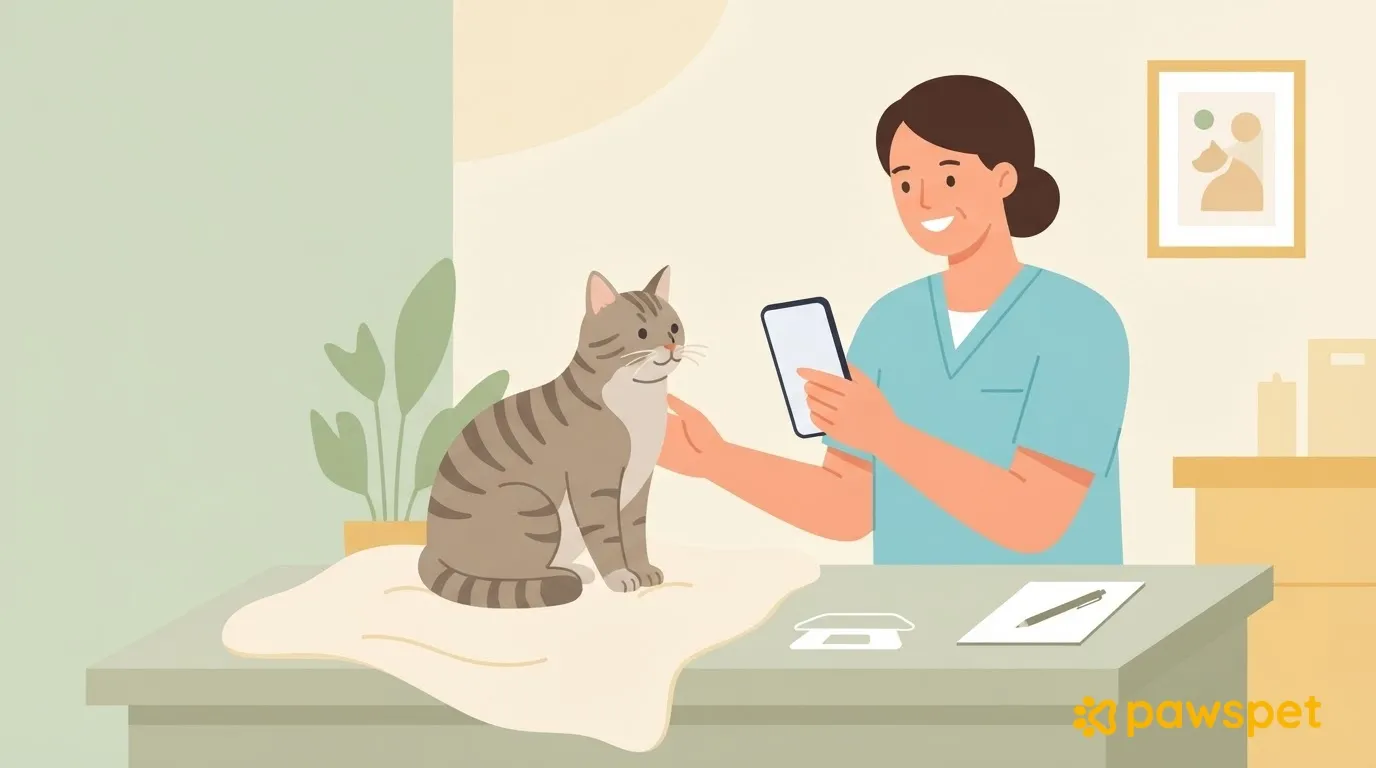
Getting your senior cat’s information organized for a vet visit takes just three tools in the PawsPet app: the “Measurements” tab for weight and BCS (body condition score), with a chart and changes; an “Other” health entry, where dated “Updates” serve as a diary; and a recurring activity with an alert to remind you to check in. At the visit, just open the chart and “History.” These tools help organize information, not interpret it: your veterinarian is responsible for assessing it, and if anything concerns you, contact them without waiting for the appointment.
What you need
- Your cat registered in the app: from the “Animals” tab, tap the “+” button to add them.
- The right permissions: if the cat is yours, you don’t need to do anything; if you’re a collaborator, you need “Edit” access to “Health,” or the buttons for adding information won’t appear. Without “View” access to “Health,” you won’t even see the “Health” and “Measurements” tabs.
- App notifications allowed in your phone settings, if you want to receive alerts.
Record weight and BCS in “Measurements”
- From the “Animals” tab, open your cat and go to the “Measurements” tab.
- Tap “Add” if the tab is empty; otherwise, tap the “+” button.
- Choose the date: it defaults to today, but you can go back to a past date. If there’s already a measurement for that day, you’re updating it.
- Optional: tap “Upload photo” to add a photo from that day.
- Enter the weight in kg, including decimals.
- For BCS, tap a value from 1 to 5, or check “Use advanced scale (1-9).”
- If you like, write a note and tap “Save.”
For each measurement, the summary shows the latest value, the date it was recorded, and an arrow indicating the change from the previous reading: for weight, the arrow indicates direction only, without judgment. Below, you’ll find a line chart and a history table.
Limits to know:
- A save with no values is rejected with “Nothing to save.”
- The app keeps only one measurement per day.
- You can’t delete a measurement from this screen: to correct one, save again for the same day.
- Without a connection, the data stays on your device with the status “Waiting to sync” and is sent as soon as possible.
For BCS, record the score given by your veterinarian, or ask them to show you how to assess it, and always use the same scale, either 1-5 or 1-9.
If more than 90 days have passed since the last measurement, a prompt to update weight and height appears in the “Recommended” section of your cat’s “Profile” tab.
With AI features enabled, you can also ask PawsPet Copilot (the purple wand button on the Home screen or in the “Animals” tab) to record the weight of a cat you own: the assistant prepares the action and completes it only after you confirm. You can also ask it to delete a measurement entered by mistake.
A diary of observations with “Other” and “Updates”
Notes about litter box habits, movement, and appetite are not an illness or a treatment: the right place for them is an “Other” entry, one for each topic.
- Open your cat’s “Health” tab and tap “+”.
- Choose the “Other” type and tap “Next.”
- Enter a required name, for example, “Litter box observations,” “Movement and jumping,” or “Appetite.”
- Set the date and write the starting situation in the notes.
- At the “Photos” step, you can upload PDF, JPG, JPEG, PNG, or HEIC attachments with “Upload attachment”; wait for the upload to finish before saving.
- Tap “Save.”
The entry appears in “History,” at the bottom of the “Health” tab. For each new observation, open it from there, go to the “Updates” section, tap “New,” and enter a date and note (the note is required). It’s best to create one entry per topic and keep notes brief and specific, such as “3 clumps instead of the usual 2” or “climbed onto the couch only from the step stool.”
Videos aren’t among the supported attachment formats: keep them in your phone’s gallery and write the video’s date in the note. Each update shows who wrote it (or the date) and can be deleted using the trash icon.
A reminder to weigh and observe
- In the “Activities” tab, tap the yellow “+” button.
- In the “Name” field, enter, for example, “Cat weigh-in.”
- Tap the “Select activity type” row, choose “Health,” then “Vital signs.”
- Tap the “Animals” row and select your cat.
- Tap “Repeat,” choose “Every N weeks” or “Every N days” (tap N to enter a number), and set the time and, for weekly reminders, the days. Confirm with “Done.”
- Tap the row with the bell, then “Set”: turn on the toggle, choose an alert (for example, “At the time of the event”), and tap “Confirm.”
- If you like, write what to check (weight, litter box, appetite) in “Notes,” then tap “Save.”
Mark each occurrence as done by tapping the small circle to the left of the row, or dismiss it with “Ignore.” The reminder doesn’t record the weight, though: enter the value in “Measurements.”
At the visit and afterward
During the visit, open “Measurements”: the chart and history show the trend. Then go to the “Health” tab, scroll down to “History,” and tap “Filter”: under “Type,” choose “Other” and, if you like, set a start and end date, then confirm with “Show.” Tap the entry to read its notes, attachments, and updates.
After the visit:
- Record the visit: from the “Health” tab, tap “+” and choose “Medical visit” (visit type, date, “Performed by,” notes; the “Diagnosis” and “Prescriptions” steps are optional).
- Add an update to the relevant “Other” entry with what you agreed on.
- If they tell you your cat’s weight at the clinic, enter it in “Measurements” with the date of the visit.
If more than one person cares for your cat
Open your cat, tap the ⋮ menu in the top right, then “Collaborators” and “Add collaborator.” Search for the person by name or email (at least 4 characters; they must already have a PawsPet account) and grant “Edit” access to “Health” (to record measurements and updates) and, if needed, “Activities.” A new collaborator starts with “View” access to “Health” only: they can read the diary and measurements, but can’t add or delete anything.
To get started, record the first weight today and create an “Other” entry for the topic that concerns you most.