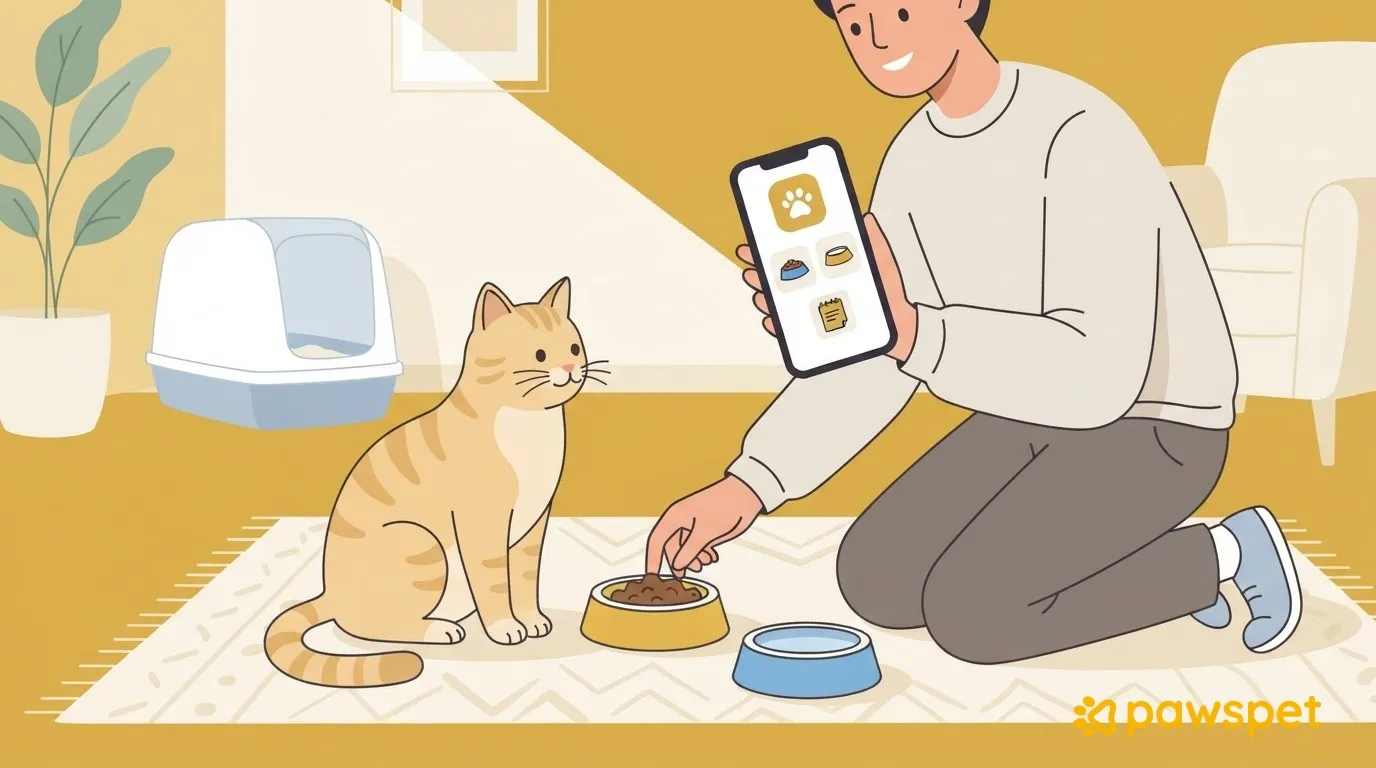
With the PawsPet owner app, you can organize the first few weeks with your newly adopted adult cat: the shelter diet with reminders to check off, recurring activities for the litter box, water and play, progress notes and, when possible, weight. Reminders help everyone at home stay organized: your cat keeps its own schedule, so you can skip an individual occurrence. The sections follow the recommended setup order, from the pet profile to notifications.
Before you begin: the cat’s profile
If you haven’t created it yet, start here:
- In the “Pets” tab, tap the “+” button at the bottom right: a five-step form opens: “Identity,” “Species,” “Profile,” “Details” and “Documents.”
- Under “Identity,” enter the name and choose a date of birth, which is required. If the shelter gave you an estimated age, choose a date that matches that estimate. A photo is optional: tap “Skip photo” so you don’t have to chase a hiding cat, and you can add one later from the profile’s ⋮ menu using “Edit images.”
- Under “Species,” choose “Cat.” Under “Profile,” enter the sex, which is required, and, if you know them, the spay/neuter status and date.
- Under “Details,” you can enter the microchip number.
- After saving, choose “Add document” to upload any documents you have right away, or “Not now.”
Meals: enter the shelter diet as a recurring item
- From the “Pets” tab, open the cat’s profile, go to the “Health” tab and, in the “Diet, therapies and treatments” panel, tap “Add.”
- Choose “Diet” from the selector at the top.
- Fill in “Name” and “Quantity.” Quantity is required: enter the amount provided by the shelter or veterinarian. If you don’t have it, ask them rather than estimating.
- Turn on “Recurring”: under “How often should it be given?” set the frequency and meal times.
- Turn on “Generate activity reminders.”
- If you also want a push notification, tap “Set alert.”
- Save.
In the “Activities” tab, each scheduled meal appears with a circle to check off and an “Ignore” button. If a reminder has already passed when you first see it and it hasn’t been checked off, the app considers it ignored, so it won’t remain on your to-do list.
To make a note about appetite, open the diet item from “History” in the “Health” tab, scroll to “Updates,” tap “New,” and enter the date and note. If the veterinarian recommends a dietary change, open the item, tap ⋮ at the top right and choose “Edit.”
Set up recurring litter box, water and play activities
Create an activity for each routine:
- In the “Activities” tab, tap the yellow “+” button at the bottom right.
- Enter the “Name,” for example, “Clean litter box” or “Fresh water.”
- Tap “Select activity type” (required): for litter box cleaning, choose “Hygiene” » “Hygiene and care”; for water and bowls, “General” » “Feeding and supplies”; for play, “General” » “Socialization” or “Free play and walks.”
- Under “Pets,” select the cat.
- Tap “Repeat” and choose “N times a day” (up to six times, using “Add time”) or “Every N days.” Under “Duration,” choose how long it should repeat (“forever,” “For a number of times” or “Until a date”), then tap “Done.”
- Next to the bell, tap “Set,” turn on the switch, choose an alert (for example, “10 minutes before”) and confirm.
- Tap “Save.”
To mark an occurrence as complete, including a meal, tap the circle to the left of the row or open it and tap “Complete.” If your cat isn’t ready to play, tap “Ignore” on the row and confirm. Ignored activities are hidden by the default filters: to find them again, open the “Status” filter and choose “Ignored.” On the Home screen, the “Today’s tasks” panel shows the time of activities due today that still need to be completed.
Record progress and weight
To record progress, create a one-time activity with no repetition and add the day’s notes:
- In the “Activities” tab, tap “+” and choose the “General” » “Behavior tracking” type.
- Select the cat under “Pets” and write what you observed in the “Notes” field, for example, “came out of hiding while I was sitting down.”
- Tap “Save.”
To read the notes again, open the ☰ menu, choose “List,” set the “Category” filter to “Behavior tracking,” confirm with “Done” and tap an item: you’ll find the “Notes” in its details.
To record weight, open the cat’s profile, go to the “Measurements” tab and tap “+” (or “Add” if it’s empty). Enter the weight in kg, including decimals if needed, and save. The app stores one measurement per day, so if you reopen the same day, you’ll update the measurement already recorded. Record the weight measured at a visit or when your cat lets you handle them without forcing it.
After the first veterinary checkup, record the visit: “Health” tab » “+” » “Medical visit.” Enter the visit type, date and “Performed by” (the “Diagnosis” and “Prescriptions” steps are optional), then save.
Diet “Updates” and these notes can help you describe how things are going to the shelter and veterinarian, but they aren’t a clinical assessment: contact your veterinarian about symptoms or sudden changes.
If more than one person is caring for the cat
To involve people you live with:
- Open the cat’s profile, tap ⋮ at the top right, then “Collaborators” and “Add collaborator.”
- Search by name or email (search starts after 4 characters) and select the person: only registered PawsPet accounts will appear.
- Set permissions for “Activities” and “Health”: “Edit” for “Activities” lets the new collaborator record activities, while for “Health,” new collaborators start with “View.”
- Confirm by tapping “Add collaborator.”
Documents uploaded to the profile aren’t visible to collaborators, regardless of the permissions you grant.
Check that reminders are coming through
Your phone asks for permission to send notifications right after your first sign-in. If you denied it, turn notifications back on in your phone settings: the app won’t ask again on its own. Then open the “Profile” tab » “Notifications,” check that “Push notifications” are enabled for “Activities” (they are by default), and tap “Save” if you make any changes.
To get started, set up the diet and litter box cleaning today; add water, play and notes only if you need them. After a week, edit or delete anything you don’t use: edit the diet from the ⋮ menu in its details, and activities using “Edit” or “Delete.” To remove a recurring activity entirely, choose “Entire series”; “This one only” marks it as ignored.