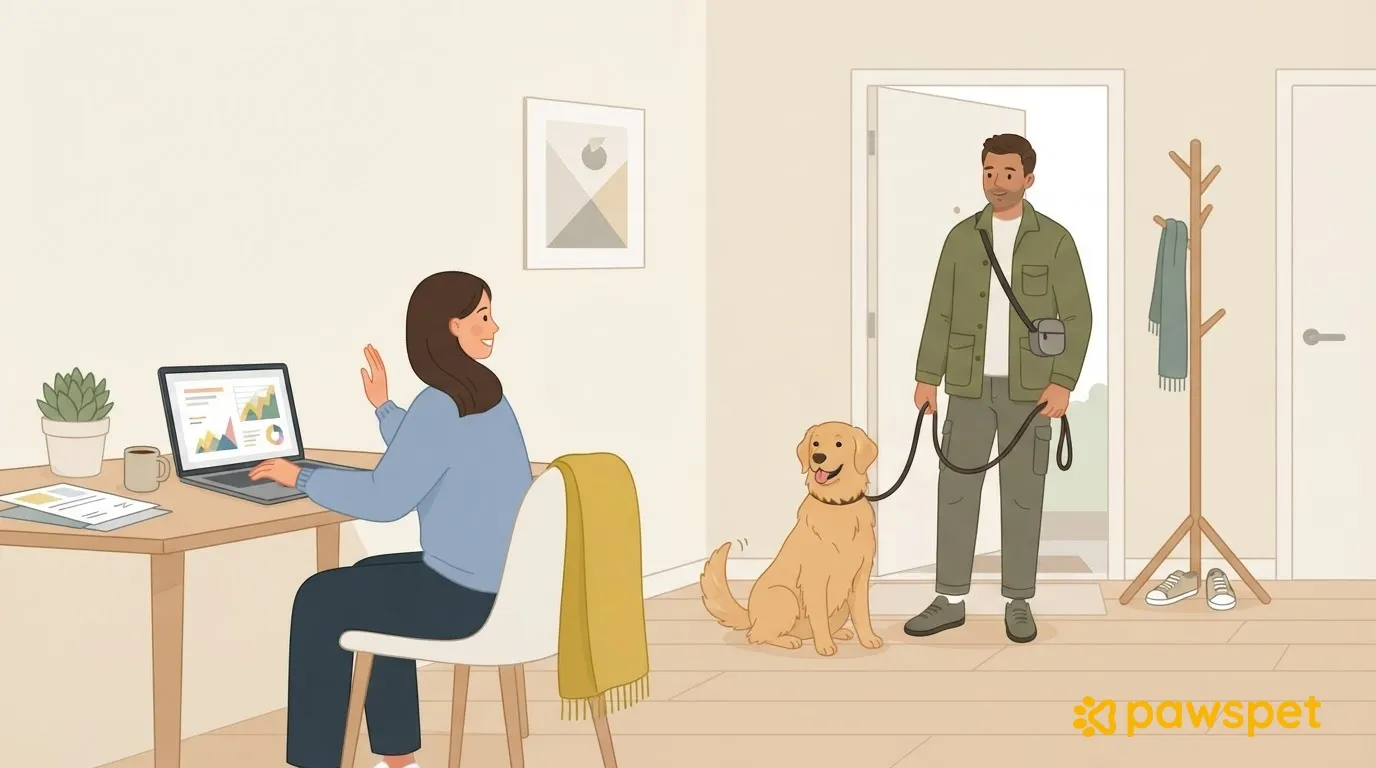
With clients working remotely, pickup windows work better than exact-minute appointments: arrive without ringing the doorbell, keep drop-offs and returns brief and calm, send updates in just a few lines, and agree on written rules for delays and changes. The goal is to organize the service without asking the owner to interrupt every meeting.
Client at home but unavailable: what changes
Being at home doesn't mean they can answer the door: a meeting might run long, and the doorbell could make the dog bark. Even seeing the owner during the walk can trigger protests. Meanwhile, the client may expect updates you haven't agreed on.
A shared protocol helps avoid on-the-spot decisions at the door while protecting the dog and your relationship with the client.
At the first meeting: recurring meetings and pickup windows
At the first meeting, ask:
- What are their usual meeting blocks, and which days are busiest?
- Who gets the dog ready and can hand them over?
- Where are the harness and leash?
- What should we do if a meeting runs long?
Choose a window that fits their schedule, for example between 12:30 and 12:45. Also agree on a maximum wait and an alternative window in case the client can't answer the door: decide on plan B in advance, not at the door.
In PawsPet Business, you can record the protocol in the private notes on the client profile, which the client can't see—so also send them a shared copy.
Arriving and handing over without interrupting a call
When you arrive, message «I'm here and ready for pickup» through the agreed channel, without ringing the doorbell. If the booking is made through PawsPet and the order has a linked conversation, you can use its chat, but don't assume it will be read right away.
Do the handover at the agreed spot, with the dog already wearing their harness. If there is one, a baby gate can keep them away from the door until everything is ready. Keep greetings brief and check the harness and leash before heading out.
Never leave doors open with the dog loose, and never enter the home without explicit consent. Review the contract and key-handling arrangements separately before agreeing to enter independently.
Returning the dog: help them settle down
Slow down during the last few minutes and give the dog time to sniff. Keep greetings brief at drop-off; if the client is in a meeting, use the agreed handover procedure.
When you're authorized to enter, wipe the dog's paws if needed, offer water, and take them to their usual spot, then leave without making a fuss. Adapt the routine to the individual dog: a calm return is a goal, not a guarantee.
Brief updates and schedule changes
Agree on when to send a summary, for example, after returning the dog. A two-line template:
Send photos only if the client has authorized them. If a safety issue requires an immediate decision, call instead of waiting for a reply in chat. Use messages for the summary and non-urgent changes, and get confirmation before putting changes into effect.
For notice periods, cancellations, and no-shows, refer to the written rules you've already agreed on.
A schedule with some breathing room
Leave time between clients for travel, waiting, and handovers. Group pickups by area and avoid scheduling them right before known meetings.
The PawsPet Business mobile app requires a provider profile. If «The management system is coming soon» appears, the schedule isn't active on the server yet. Once it's available:
- Open «Schedule» » «+», link the client with «Choose client», and select the relevant «Pets».
- If useful, choose «Service (optional)» and «Option»: the duration is filled in from the option. Without an option, you need a «Title».
- Set «Start» and check «Duration»; enter the agreed window and plan B in «Notes», then tap «Save».
If there's a scheduling conflict, the app still saves the appointment and displays «Overlaps»: you'll need to decide whether to move it.
For manual appointments, use «Done» after the service or «No-show» if the client doesn't show up. Create each appointment individually; don't rely on automatic recurring appointments. Marketplace orders with a set time appear in the schedule, but are managed from the order details.
For unavailability, open «Schedule» » ☰ » «Closing hours» » «Block time»: when active on the server, this feature prevents new marketplace bookings during that time.
For marketplace bookings, set «Appointment duration», «Maximum capacity per time slot», and «Break between appointments» in the service option. Under «Profile» » «Working hours», adjust «How often to open slots»: this is the general interval between bookable start times, not the break between appointments.
The protocol to suggest to clients
Use this checklist as a template to fill out together:
- Agreed pickup window and days: …
- Channel for announcing arrival, without ringing the doorbell: …
- Handover and return location and procedure: …
- Maximum wait and plan B: …
- Update time and format; consent to photos: …
- Rules for changes, cancellations, and no-shows: …
Fill it out and send it to clients who work remotely before next week.