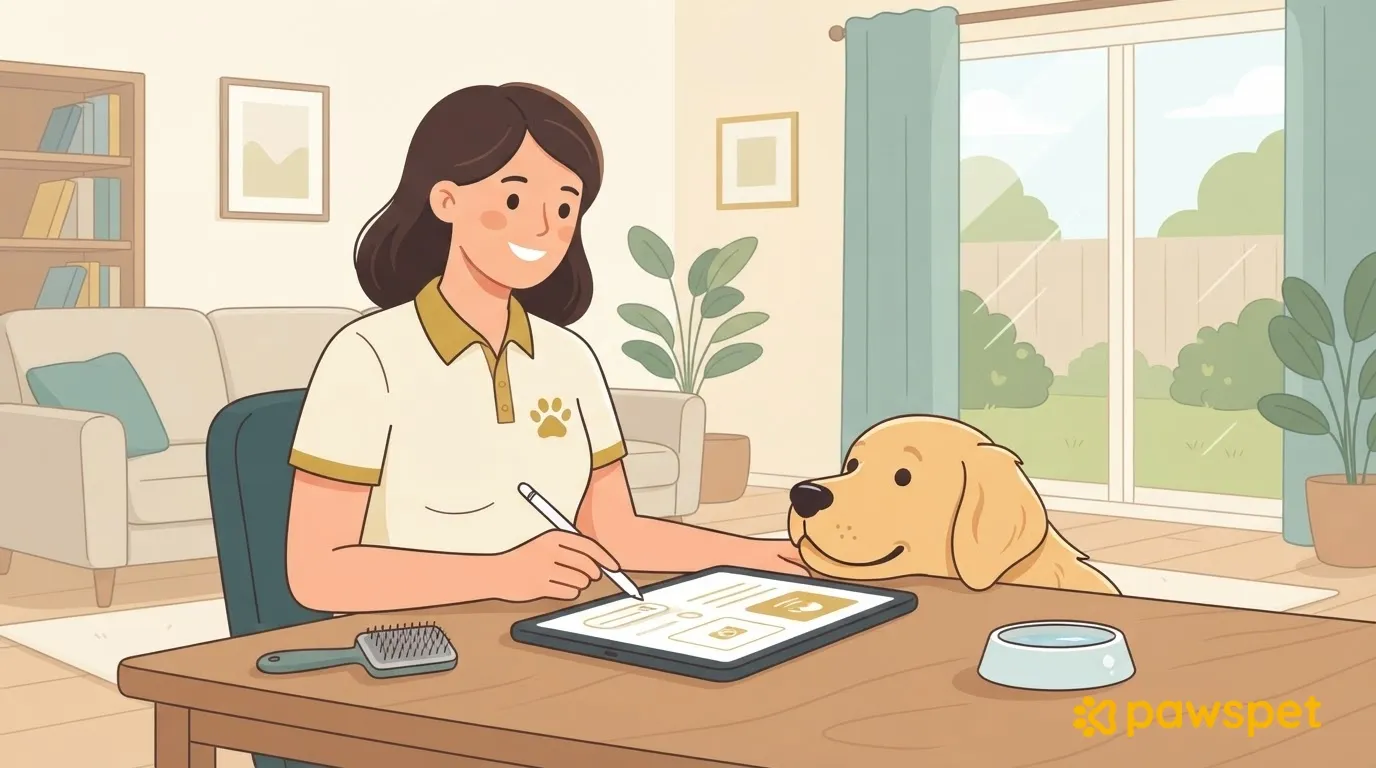
As a pet sitter, use the “Clients” tab in PawsPet Business to create a profile for the client and their pet. After each visit, record an “Activity” or a “Note” in the pet’s profile, including the date, details, and an optional photo, and find everything in the client’s history. Inviting the client to link their PawsPet account is optional.
Before you start
You need a business profile in PawsPet Business, the business app for iOS and Android that uses the same account as PawsPet. If your account doesn’t have one, the app starts the “Become a business” setup guide: for a pet sitter, choose the “Pet sitting” category.
You can still use Calendar, Orders, and Clients even if Stripe payment verification isn’t complete: verification is required to appear in the marketplace and accept online payments.
Some features in this area, such as invitations, depend on the server. Until they’re enabled, you’ll usually see “Available with the next server update” in their place. You don’t need to do anything; they’ll appear automatically.
Create a profile for the client and their pet
- Open the “Clients” tab and tap the “+” button in the bottom-right corner.
- Fill in “Name *” and, if you want, “Email,” “Phone,” and “Notes.” Notes are private: the client can’t see them.
- Check the required box “I declare that I have informed the client about the registration of their data *”.
- Tap “Next: add a pet.”
- Fill in “Name *,” check the “Species” (Dog is preselected), and add any useful details, such as breed, sex, date of birth, and microchip.
- Tap “Done”: you’ll arrive at the client’s profile, with their first pet already registered.
The client doesn’t need to be registered with PawsPet, and creating the profile doesn’t send them anything: they’re just a contact in your business management app until you invite them. For a client who’s already in your contacts, open their profile and use “Add pet” in the “Pets” section.
Leave the animal form’s “Health notes” aside: it’s a legacy feature, and if the pet already has records, notes added there no longer appear in the “Health” profile. Use “Record” for all information.
Record each visit as an activity or note
- Open the client and tap the pet in the “Pets” section.
- Go to the “Activity” tab and tap “+”: the “Record” sheet opens with “Activity” selected as the type.
- Fill in “Name *” (for example, “Morning visit”), “Date” (optional, but it’s best to always include it), and “Notes” with the facts you observed. If you want, add a photo from your camera or gallery.
- Tap “Save”: the visit appears in the “Activity” tab.
For a simple observation, choose “Note” as the type in the sheet instead: you’ll find it in the “Health” tab, in the “History” section. To correct a record, tap it in the list to open “Edit record.”
Use the other types (Vaccine, Treatment, Allergy, Visit, Grooming, Weight) only for what they describe: your pet-sitting visit should remain an “Activity.” In “Notes,” write observed facts (“ate half a portion, 20-minute walk”), not diagnoses: health assessments are the veterinarian’s responsibility.
If the client’s profile is archived, the pet is read-only and the “+” button won’t appear.
Find everything in the client’s history
The “History” section in the client’s profile (with “See all” for the full list) displays records, past appointments, orders, and notes written by the client in the PawsPet app in date order. Every record you save also appears here.
Client notes appear in bold under the title “New note from …”; a yellow dot on the avatar in the client list indicates that the client has written a note. The app has no command to mark them as read, so the bold text and dot remain even after you’ve read the note. If the server doesn’t yet support history, the section won’t appear.
To schedule the next visit, use “Upcoming appointments” and tap “Add”: the Calendar form opens with the client already selected.
Invite the client to link their account
Linking is optional. If you want to suggest it:
- On a client profile marked “Not registered,” tap “Invite” (you’ll also find it in the ⋮ menu in the top-right corner).
- Edit the prefilled message, which includes the link, if you want.
- Tap “Share” and choose an app to send it with, such as WhatsApp, SMS, or email.
The app doesn’t send anything on its own: you’re always responsible for delivering the invitation. Until the invitation is accepted, the profile remains “Not registered” and displays “Invited on … · expires on …,” with the “Resend invitation” and “Revoke invitation” buttons. If the invitation expires or is declined, “Resend invitation” creates a new one.
The client opens the link in the PawsPet app; if they aren’t signed in yet, the app asks them to sign in first. For each pet you’ve registered, they can choose “Link,” “Create new,” or “Skip”: “Link” is available only if the app finds a match, for example, the same microchip, so it’s a good idea to record it in the pet’s profile. They can also check the box “Allow … to view …’s health profile”: it’s turned off by default, and accepting the invitation alone doesn’t give you access to the health profile. Then they tap “Accept.”
After linking, the profile changes to “On PawsPet,” and the client can add notes that appear in your history. Where the feature is available, the client can see your records in the “Recorded by professionals” section of each linked pet’s profile, along with the type and date: they can’t edit or delete them. Write anything that needs to remain private in the “Notes” section of the client’s profile: the client will never see them.
To end the link, use “Unlink from PawsPet” in the profile’s ⋮ menu: this only removes the link; the profile and history remain yours.
FAQ
Can I delete the profile of a client I no longer work with?
No: archive it from the profile’s ⋮ menu using “Archive.” The profile is removed from the list, but the appointment and order history remains available. Where available, you can retrieve it from the “Archived” filter using “Restore.”
Do records replace a message to the owner?
No. They’re your dated log, not a message: use the channel you’ve agreed on to send an update after the visit.