Whether you have a cat or a dog, an automatic kibble feeder can help stick to meal times and portions you’ve already decided on with your veterinarian or based on the food’s feeding guidelines. Choose one by asking how it works without power or an internet connection, what kibble it works with, and how to clean it. Test it for a few days while you’re home, weighing what it dispenses. It does not replace someone checking on your pet.
What an automatic feeder can and can’t do
An automatic feeder dispenses portions at scheduled times and lets you split the daily ration into several meals. But it has its limits: it doesn’t monitor water or the litter box, notice if your pet isn’t eating or is unwell, and it can jam or switch off.
It also doesn’t decide how much food your pet needs: the daily amount is set by your veterinarian or based on the food’s feeding guidelines. This article doesn’t specify any amount. If your pet is on a special diet or has health problems, ask your veterinarian how to divide the meals, too.
Questions to ask at the store
Bring the name or package of the food and the ration recommended by your veterinarian, then ask:
- What power source does it use? Does it have backup batteries?
- What happens to the scheduled times if the power goes out?
- If it’s controlled through an app, does it work without an internet connection? Are the scheduled times saved on the device?
- What kibble sizes and shapes does the manufacturer say it works with? Can I test it with the kibble I use?
- How do you set the portions?
- If my pet tries to open or tip it over, do the lid and hopper stay secure?
- Which parts can be removed and washed? Are replacement parts available?
- How loud is it when dispensing food?
- Is it designed only for kibble?
- If I have multiple pets on different rations, what options are there for keeping their meals separate?
If the store staff can’t answer, ask to consult the manual before buying. Also find out whether you can return it if the test at home doesn’t go well.
How to test the feeder at home while you’re there
- Read the manual and assemble everything before filling the hopper.
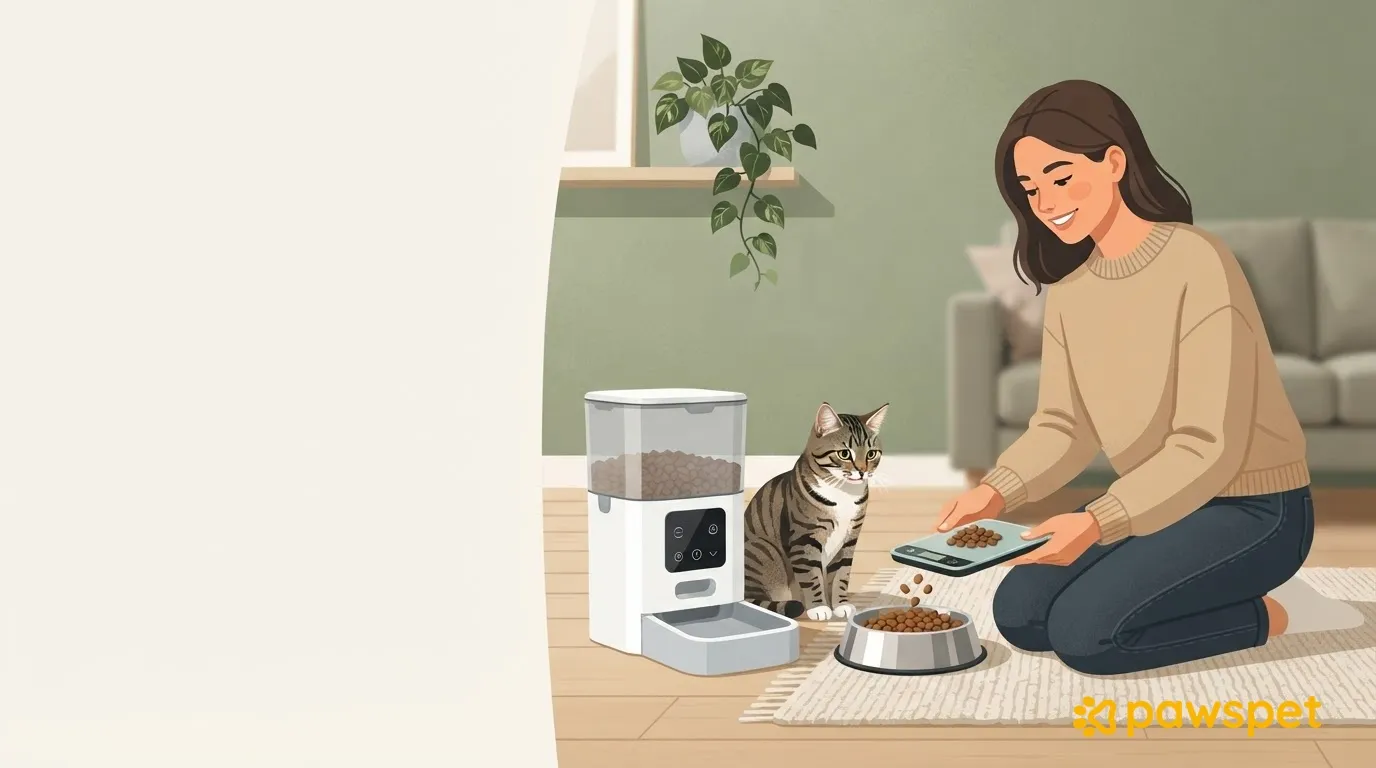
- Set a portion and use a kitchen scale to weigh what comes out over several dispensing cycles. Adjust the setting until the weight matches the portion you’ve set for each meal. If you give your pet the food used for testing, deduct it from that day’s ration. If you change foods, weigh it again.
- Schedule meals at your pet’s usual times and observe how they react to the noise and the new device. Don’t leave them alone with the feeder until they’re eating calmly.
- Check whether it jams or the kibble gets stuck.
- Following the manual, check what happens if you unplug it: does it restart? Does it retain the scheduled times?
- Continue testing for a few days before relying on the feeder for a meal when you’re away. In the meantime, always leave fresh water available.
Pet feeder while away: who checks on your pet
The feeder handles meals, not your pet. If it stops working or jams, your pet may be left without food. So when you’re away, arrange for someone you trust or a pet sitter to check the dispensed food, water, litter box, and how your pet is doing. How often visits are needed depends on your pet and the situation: if in doubt, ask your veterinarian.
Leave these details in writing:
- ration and scheduled meal times;
- how to refill the hopper;
- what to do if it jams or the power goes out;
- your veterinarian’s contact details.
You can also record the ration in the PawsPet app under “Diet”: in your pet’s “Health” profile, in the “Diet, therapies and treatments” section, tap “Add,” choose “Diet,” and fill in “Name” and “Amount.” Use “Recurring” to set the frequency and time, and explain how it’s divided between meals in “Notes.” This entry doesn’t program the feeder: it lets the person checking on your pet know what ration is planned.
There are two ways to let the person checking on your pet view their details, both available from the three-dot menu ⋮ at the top right of the profile. With “Collaborators,” you can add someone who already has a PawsPet account and choose their permissions by area: to let them read the diet, “View” is enough in the “Health” area. With “Sharing,” you can instead create a read-only link: anyone who receives it can open it without an account and see basic identifying details, such as microchip and location if entered, as well as the health summary, including diets and treatments.
When you return, remove access: a collaborator remains one until you remove them. You can deactivate the link from the same menu, but if you reactivate it, it will work again with the same code, so leave it turned off.
Cleaning and regular checks
Empty and wash the parts the manual says can be removed, following its instructions, and dry them thoroughly before refilling the hopper. After putting everything back together, check that it works before the next meals. Check the batteries, lid, and food outlet: follow your model’s manual for how often. For the food, follow the manufacturer’s storage instructions rather than leaving kibble in the hopper for a long time.
Weight and appetite: checking over time
The feeder dispenses food, but doesn’t tell you whether your pet actually eats it. Check whether any kibble is left uneaten and whether your pet’s behavior changes. To track weight, you can record it in the “Measurements” profile section in the PawsPet app and view it over time in a graph. If your pet’s weight or appetite changes, talk to your veterinarian: the feeder doesn’t flag health problems.
Before your next absence, prepare your list of questions for the store and set a trial period: that way, you can spot any problems while you’re still home.